 ZParen
Assistant and MCP
The assistant #
Open the assistant with ⌘L. You make two choices: the assistant, Claude or Codex, and how it signs in. Settings ▸ General ▸ Panel font size sets the size of its text.
| Assistant | Sign in with | What ZParen does | Who pays |
|---|---|---|---|
| Claude | API key | Calls the Anthropic API with your key | Your API account, per token |
| Claude | Login | Runs your claude command (Claude Code) |
Your Claude plan |
| Codex | API key | Calls the OpenAI API with your key | Your API account, per token |
| Codex | Login | Runs your codex command |
Your ChatGPT plan |
Settings ▸ Assistant, which the gear icon in the assistant panel opens, has both choices, then the model and the key or login
for that pair. The model menu under the chat groups the models the same way,
as Claude · API key, Claude · Login, Codex · API key and
Codex · Login. It switches even mid-conversation. Each pair keeps its own
model. The API defaults are claude-opus-5-5 and gpt-6.1-sol, and you can
type any other model name. With a login, Default model uses the model
that the command itself is set to. Stop ends a reply and any Lisp code the assistant was
running for it.
With API key, paste the key in the assistant or in Settings. For
Claude, ZParen also uses ANTHROPIC_API_KEY, ANTHROPIC_AUTH_TOKEN, or an
ant auth login profile. For Codex, it uses OPENAI_API_KEY. Set
OPENAI_BASE_URL to use another server that offers the Responses API.
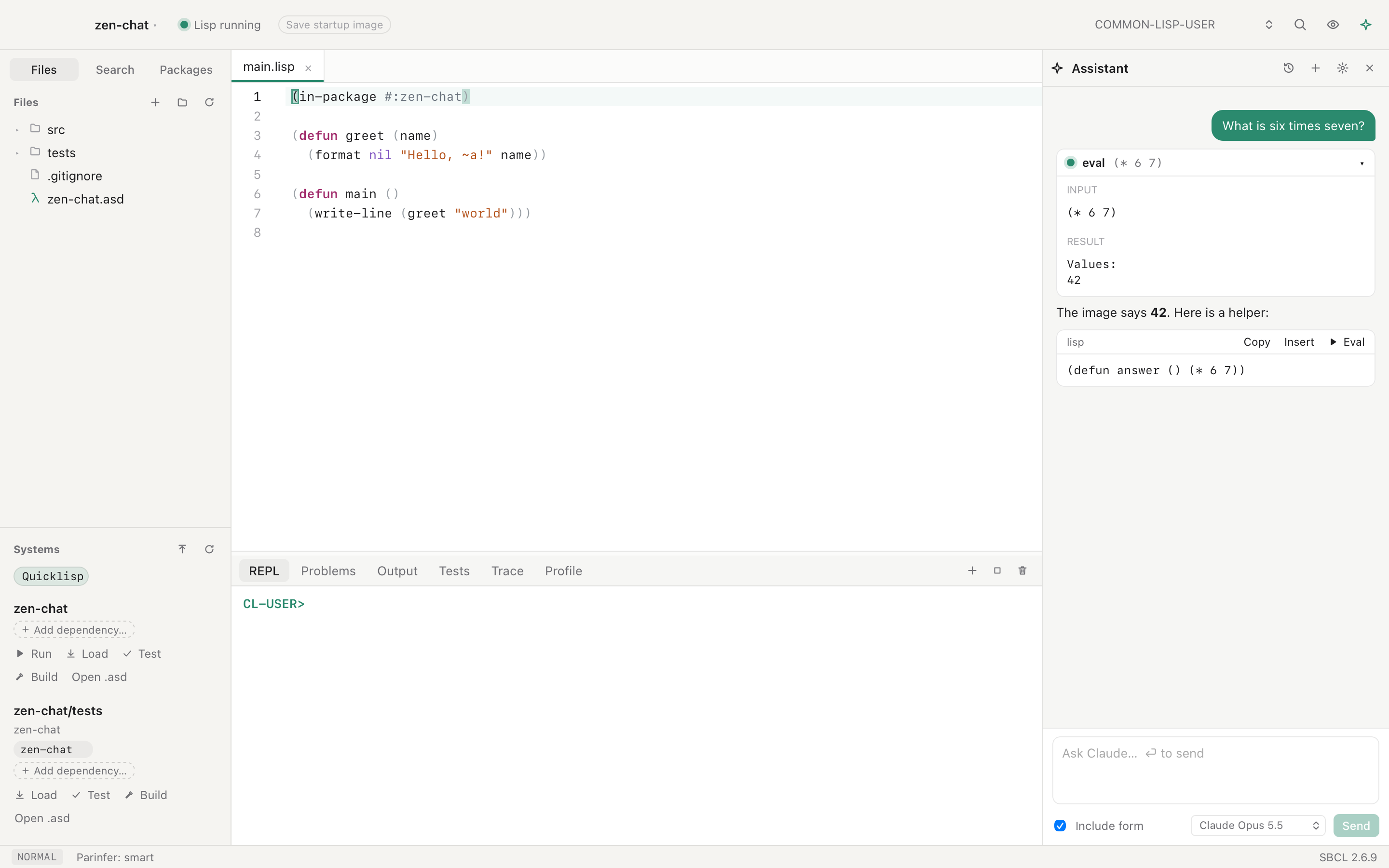
Every choice uses the same tools as the MCP server below. Code proposed in a reply has Insert and Eval buttons.
Sign in with your login #
With Login, ZParen answers with the Claude Code or Codex that you already use in a terminal, so the assistant runs on your subscription instead of an API key.
- Install the command and log in once in a terminal: run
claudefor Claude Code, orcodex loginfor Codex. - In Settings ▸ Assistant, set Sign in with to Login. Or choose a model under Claude · Login or Codex · Login in the chat's model menu.
ZParen finds the command on your PATH, in Homebrew's folders, or in
~/.local/bin. If the command is missing or logged out, the assistant says
what to run, and Check Again looks once more.
For each reply, ZParen runs the command in the project folder and connects it to its own MCP server. The agent gets only ZParen's tools, not its own file and shell tools. Codex's shell is still there, but it is limited to reading files. Your other MCP servers are not loaded for these replies. The agent keeps its own conversation, and the next message continues it. If another choice answered in between, ZParen sends the agent what was said, so you can switch in the middle of a conversation.
Stop ends the command and the Lisp work its tool calls started. A tool call that reaches ZParen after Stop does not run.
Claude Code over MCP #
To let Claude Code work in your image, register ZParen's MCP server once:
- Open Settings ▸ Assistant. Press ⌘, and choose Assistant, or click the gear icon at the top of the assistant panel.
- Next to Claude Code in a terminal, click Copy Command.
- Paste the command in a terminal and run it.
The command looks like this, with your token in place of <token>:
claude mcp add --transport http zparen http://127.0.0.1:7337/mcp --header "Authorization: Bearer <token>"
The token is a password that ZParen makes the first time its MCP server
starts. The server listens only on 127.0.0.1 and refuses any request
without the token, so other programs on your Mac cannot run code in your
image. The token stays the same each time ZParen starts, so you register only once.
It lives in ~/Library/Application Support/ZParen/mcp-token, which only your
user can read. If you remove that file, ZParen makes a new token, and you
must register again. Keep the token out of chats and repositories.
The tools are eval, compile_form, describe_symbol, apropos,
find_definitions, who_calls, macroexpand, list_packages,
project_info, load_system, run_tests, debugger_state,
invoke_restart, read_file, edit_file, and list_files.
Ask AI to fix #
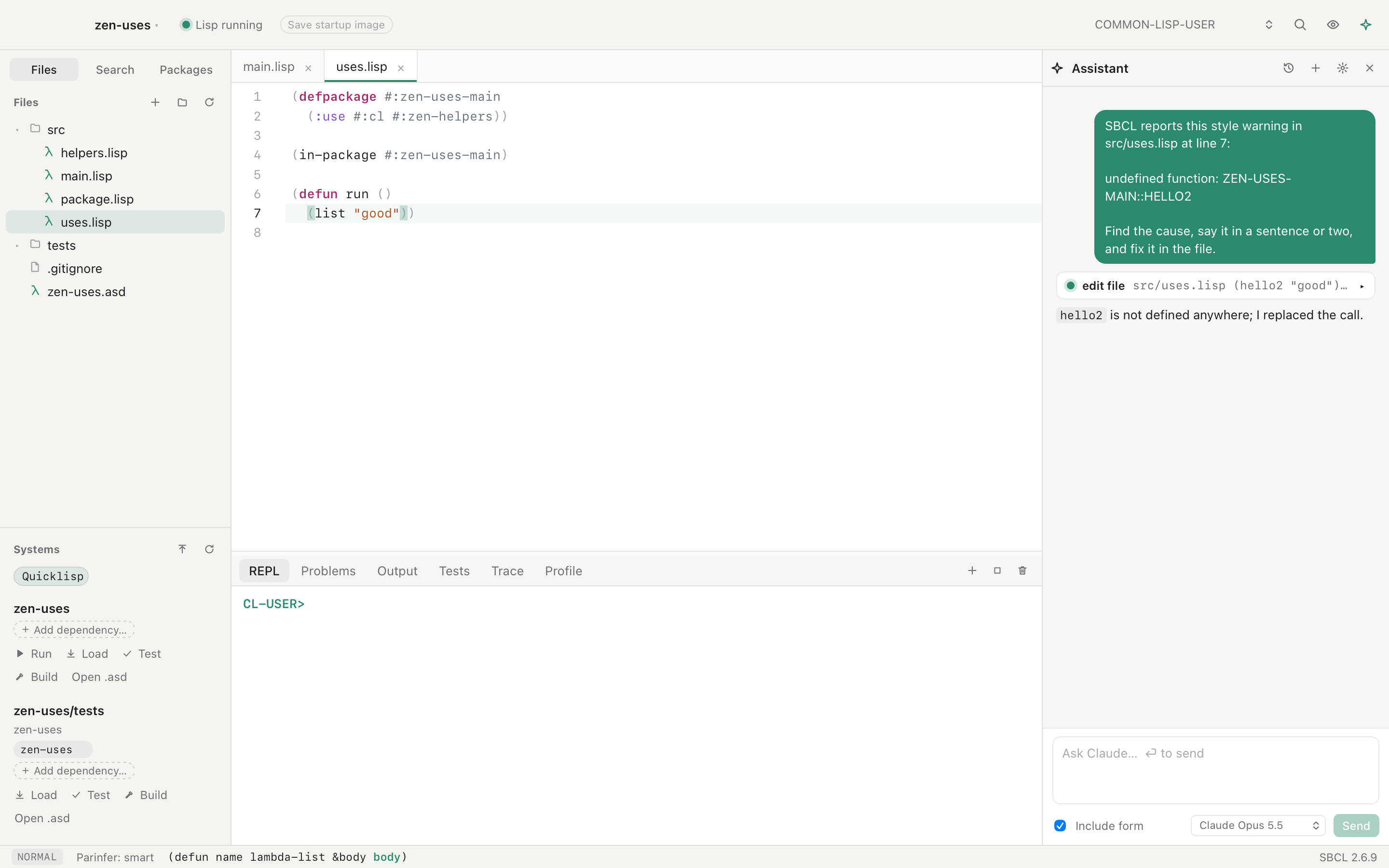
Every warning and error mark has an Ask AI to fix button. It shows in the
box that opens when you hover a mark or click its message at the end of the
line. It sends
SBCL's message, the file, the line and the code to the assistant. The assistant
finds the cause and changes the file with edit_file. The
change shows in the editor at once, and one undo takes it back.