 ZParen
Edit code
Keys #
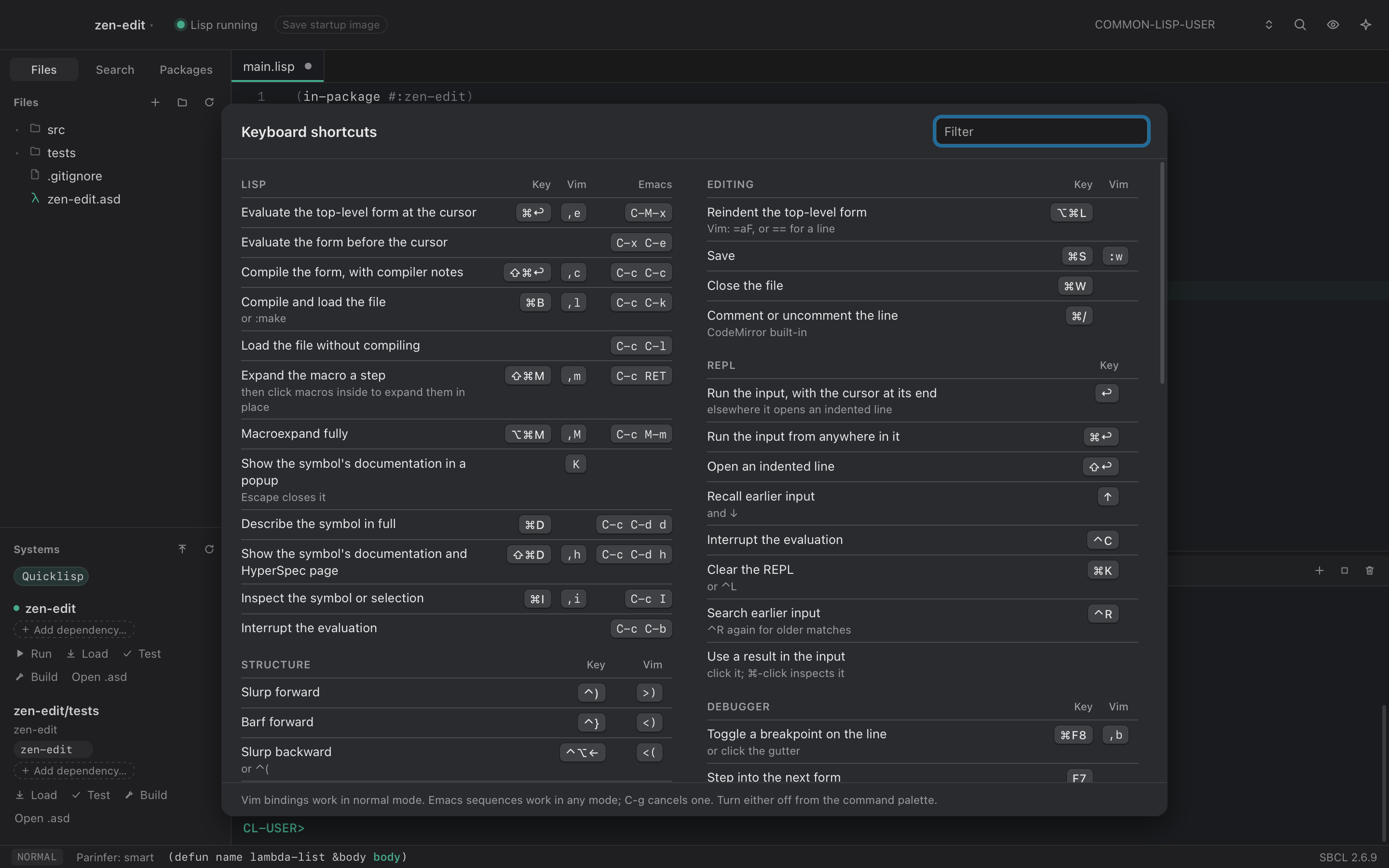
Press ⇧⌘/ for every shortcut, with a filter. The list comes from the same table that defines the bindings, so it is always current.
These are the ones you use most:
| Action | Shortcut | Vim |
|---|---|---|
| Evaluate the form at the cursor | ⌘↩ | ,e |
| Compile the form, with compiler notes | ⇧⌘↩ | ,c |
| Compile and load the file | ⌘B | ,l |
| Go to definition, find references | F12, ⇧F12 | gd, gr |
| Go back, go forward | ⌃O, ⌃⇧O | same in Vim |
| Slurp, barf | ⌃), ⌃} | >), <) |
| Select a form | ⌃⇧⌘→ | vaf |
| Change the symbol at the cursor | cie |
|
| Rename a symbol | F2 | ,r |
| Search in project | ⇧⌘F | |
| Command palette | ⇧⌘P |
In Vim, a word is a Lisp symbol, as in Vim's own Lisp support. w, b, e
and ge move over rect-shape in one step, and dw and cw change it
whole. * and # search for the whole symbol, so rect and my-rect-shape
do not match. g* and g# also find it inside longer names. iw still
stops at a hyphen. ie takes the whole symbol.
SLIME's Emacs sequences work too, in any Vim mode:
| Sequence | Action |
|---|---|
C-x C-e |
Evaluate the form before the cursor |
C-M-x |
Evaluate the top-level form |
C-c C-c |
Compile the top-level form |
C-c C-k |
Compile and load the file |
M-., M-, |
Go to a definition, and back |
C-c C-z |
Switch to the REPL |
The status bar shows a prefix such as C-c while you type it, and C-g
cancels it. Plugin commands list their keys in the same ⇧⌘/ screen.
Turn off Vim keys, Emacs sequences, parinfer or checking as you type in Settings (⌘,).
On Linux #
On Linux, Ctrl takes the place of ⌘: ⌘↩ is Ctrl+Enter, and ⇧⌘P is Ctrl+Shift+P. The shortcuts screen shows each key as Linux writes it. A few keys move, because Ctrl, Vim or the desktop already uses the macOS key there:
| Action | macOS | Linux |
|---|---|---|
| Compile and load the file | ⌘B | Ctrl+Shift+B |
| Go back, go forward | ⌃O, ⌃⇧O | Alt+←, Alt+→ |
| Run the project's tests | ⌘U | Ctrl+Shift+T |
| Reindent the top-level form | ⌥⌘L | Ctrl+Shift+I |
| Trace the function | ⌥⌘T | Ctrl+Alt+Shift+T |
| Expand, shrink the selection | ⌃⇧⌘→, ⌃⇧⌘← | Alt+Shift+→, Alt+Shift+← |
In the editor, Vim and Emacs keep their own Ctrl keys. In Vim's normal mode,
Ctrl+D and Ctrl+I scroll and jump as in Vim, and ,i and the command palette
describe and inspect. In the REPL, Ctrl+A selects all; Home goes to the start
of the input. With text selected, Ctrl+C and Ctrl+X copy
and cut, and do not start an Emacs sequence, as Emacs's cua-mode does. In the
REPL, Ctrl+C copies selected text, and interrupts Lisp when nothing is
selected. Ctrl+L opens the assistant, so Ctrl+K clears the REPL.
Structure #
Parinfer keeps parentheses balanced as you type, and typing ( or " over
a selection wraps it. The structural commands move code by whole forms:
slurp, barf, raise, splice, kill, transpose, split, and join.
Parinfer moves the closing parentheses at the end of a line when you change
the indentation. To see which ones it moves, turn on Settings ▸ Parentheses ▸
"Dim the closing parentheses parinfer moves". They keep their color, faded.
The line with the cursor is not dimmed. Nothing is dimmed when parinfer
refuses the text, for example because of a lone " in a comment, since it
then moves nothing. The status bar says why.
Indent guides are thin vertical lines in the indentation. Each form that spans lines gets one, under its open parenthesis, on the lines below. A guide shows only in the spaces, so text is never crossed. The guide of the innermost form around the cursor takes its parenthesis color. To hide them, turn off Settings ▸ Parentheses ▸ "Show indent guides under open parentheses".
In Vim, these text objects work after an operator such as d, c or y,
and in Visual mode:
| Keys | Selects | Example |
|---|---|---|
ie |
The symbol, string or list at the cursor, hyphens included | cie renames skip-down-all |
ae |
The same, with the space next to it | dae deletes an argument and its space |
if |
Everything inside the enclosing list's parentheses | cif rewrites the whole call |
af |
The enclosing list, with its parentheses | daf deletes the call |
iF, aF |
The same for the top-level form | yaF copies the whole defun |
Pressing ie, af or if again in Visual mode grows the selection to the
next list out.
Rename #
F2, or ,r in Vim, renames the symbol at the cursor. A box opens on the
symbol with its name selected. Type the new name and press Return, or press
Escape to cancel. A local variable or local function is renamed in its form.
Any other symbol is renamed across the project, after a preview.
A local variable or function #
ZParen renames the binding and every use of it, and one undo takes the whole rename back.
It reads the code as text, the way gd does, so it works before the code is
loaded. It knows which binding each use means. An inner let that binds the
same name keeps its own uses, and 'x, :x and "x" stay as they are.
ZParen refuses, and says why, when a rename could change what the code does:
- The new name is already used in the form, so a binding could capture it.
- The symbol is a plain
&keyparameter. Its name is also the keyword callers pass. - The symbol is a slot name in
with-slots. - The name is both a local function and a variable in the same form.
When Lisp is running, ZParen also asks it to check the rename before making it. Lisp expands every macro in the form, before and after the rename, and compares the two. They must be the same code except for the new name. This catches what reading the text cannot see, such as a macro of your own that quotes the name or binds it. When the two differ, the box says so, and Return again renames anyway. When Lisp cannot check, for example because it is not running, ZParen renames and says the rename was not checked.
A global symbol #
A function, macro, variable or class is renamed in every file of the project. Lisp must be running and have loaded the code that defines it.
- Lisp says which symbol the name at the cursor is, such as
APP::GREET. - ZParen refuses when the symbol is defined outside the project, such as a function from a library, or when the new name already means something in that package.
- ZParen finds every token with that name in the project, and Lisp reads
each one as the reader would. A token in another package, a keyword, a
string or a comment does not count. Names in
defpackage, such as(:export #:greet), do. - The Search sidebar lists every place by file. Places Lisp confirmed are ticked. Places it could not read, such as code in a package that is not loaded, are unticked, and you can tick them.
- Rename writes the files. An open file shows the change, and one undo in it takes the change back.
Files with unsaved changes must be saved first. A file changed since the preview stops the rename before anything is written.
Lisp still has the old name defined until the code is compiled again. Load the system again so that it uses only the new name.
Checking as you type #
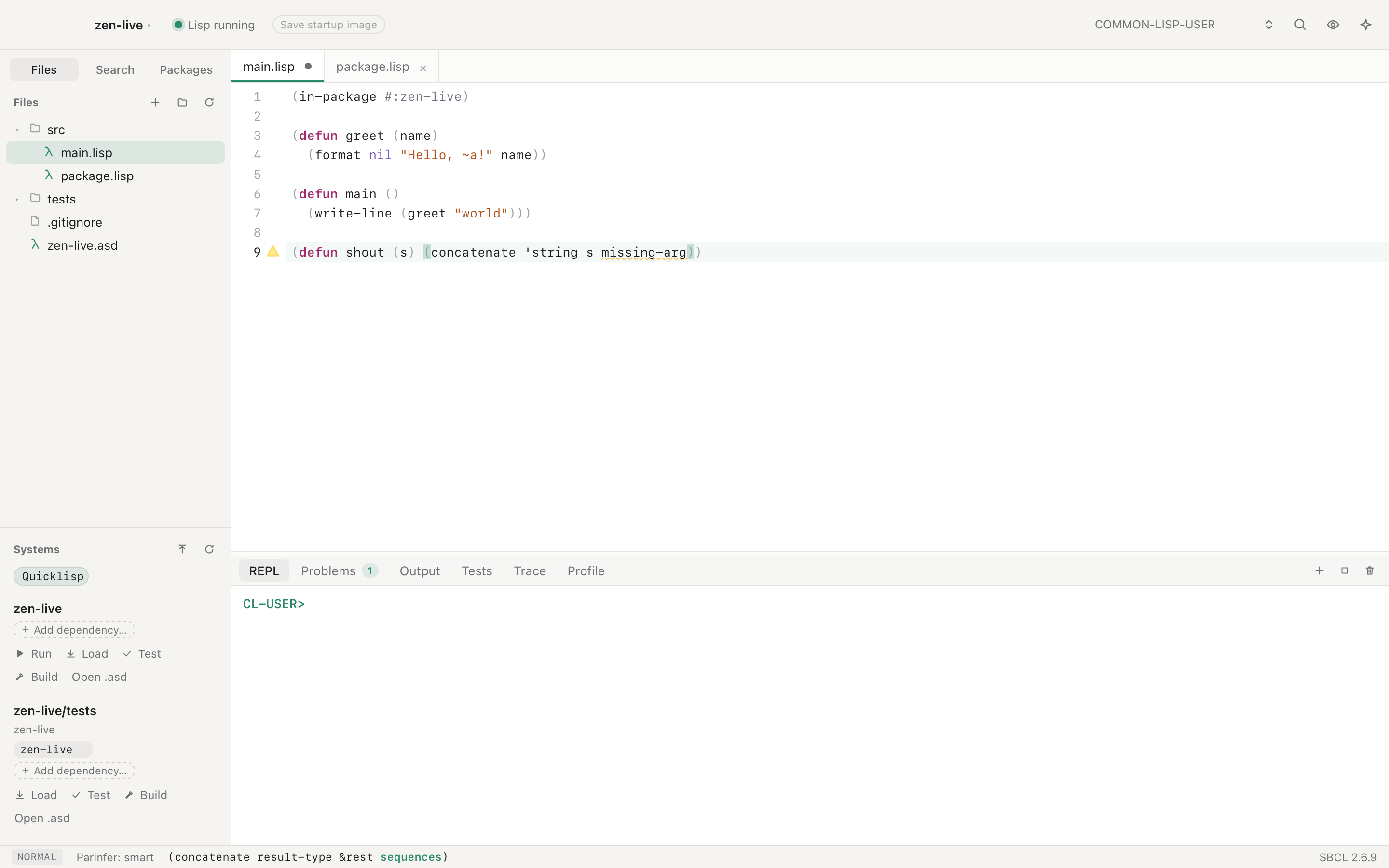
Each file is compiled in the background, without loading it, and warnings mark the exact symbol. Saving compiles only the top-level forms that changed into the running Lisp. A loaded file changed by git or another editor is compiled the same way.
Files are still checked while a load or compile is stopped in the debugger. Choosing a restart checks the open files again, since the load may go on.
Each line with an error or warning ends with its message, in light text of the mark's color: red for errors, yellow for warnings. SBCL's notes keep only their mark. A line with several problems shows the most severe one and "+N" for the rest. Click the message to open the full box, with Copy and Ask AI to fix. Moving the cursor or typing closes it. To have a box open whenever the cursor reaches a mark instead, as ZParen did before, set Settings ▸ General ▸ Problems to In a box at the cursor.
The Problems panel lists compiler notes from every file. Every warning and error mark has an Ask AI to fix button, described in Assistant and MCP.
Navigation and completion #
gd goes to local bindings first, then to Lisp's own record of a definition,
then to definitions in code not loaded yet. ⌃O goes back.
Completion offers package and system names where code names them, such as
(:use #:alexan. ⌃N and ⌃P move through the list. K shows a symbol's
documentation in a popup.
Files and search #
The file tree creates, renames, and moves files to the Trash. When another program changes an open file, ZParen reloads it if you have no unsaved edits, and asks otherwise. It also asks before closing a file or quitting with unsaved changes. Files outside the project are read-only and show a lock. SBCL's own sources, which go to definition can open, are an example.
Search in the sidebar finds and replaces across the project, with the
same .gitignore rules as ripgrep. The trash button in the bottom panel
clears whichever tab is showing.
The editor #
A right-click in the code opens a menu for the selection, or for the form and symbol you clicked:
- Explain This Code asks the assistant at once.
- Ask Assistant About It… opens the chat with the code attached, for your own question. The chat shows what it is about, and × removes it.
- Evaluate, Compile, Expand Macro, Inspect and Profile run as their keys do.
- On a symbol: Go to Definition, Find References, Describe Symbol, Show Documentation, Rename Symbol…, Trace Function and Disassemble Function.
- With a selection: Cut and Copy.
The arrow keys move through the menu, Return chooses, and Escape closes it.
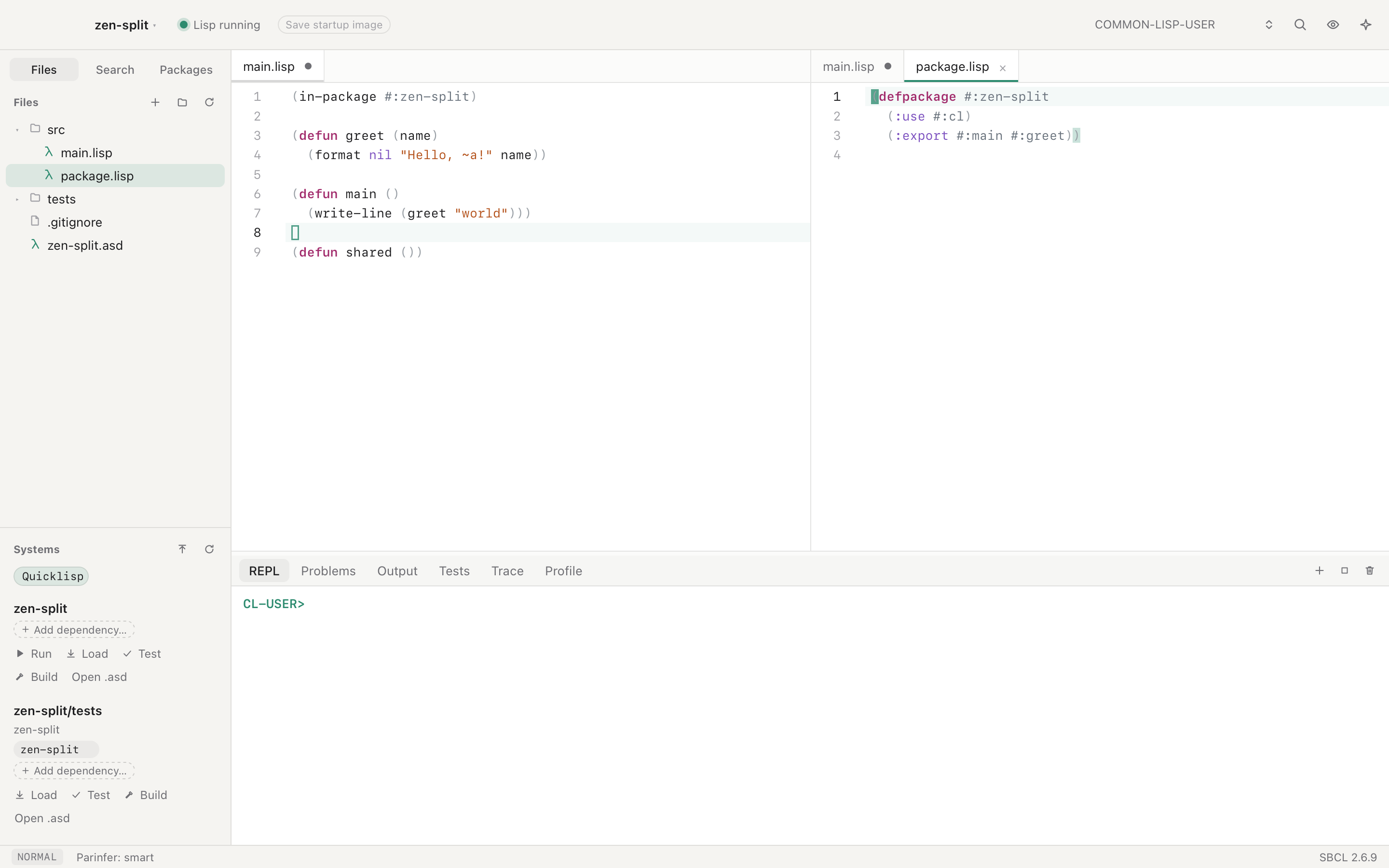
Split panes, side by side.
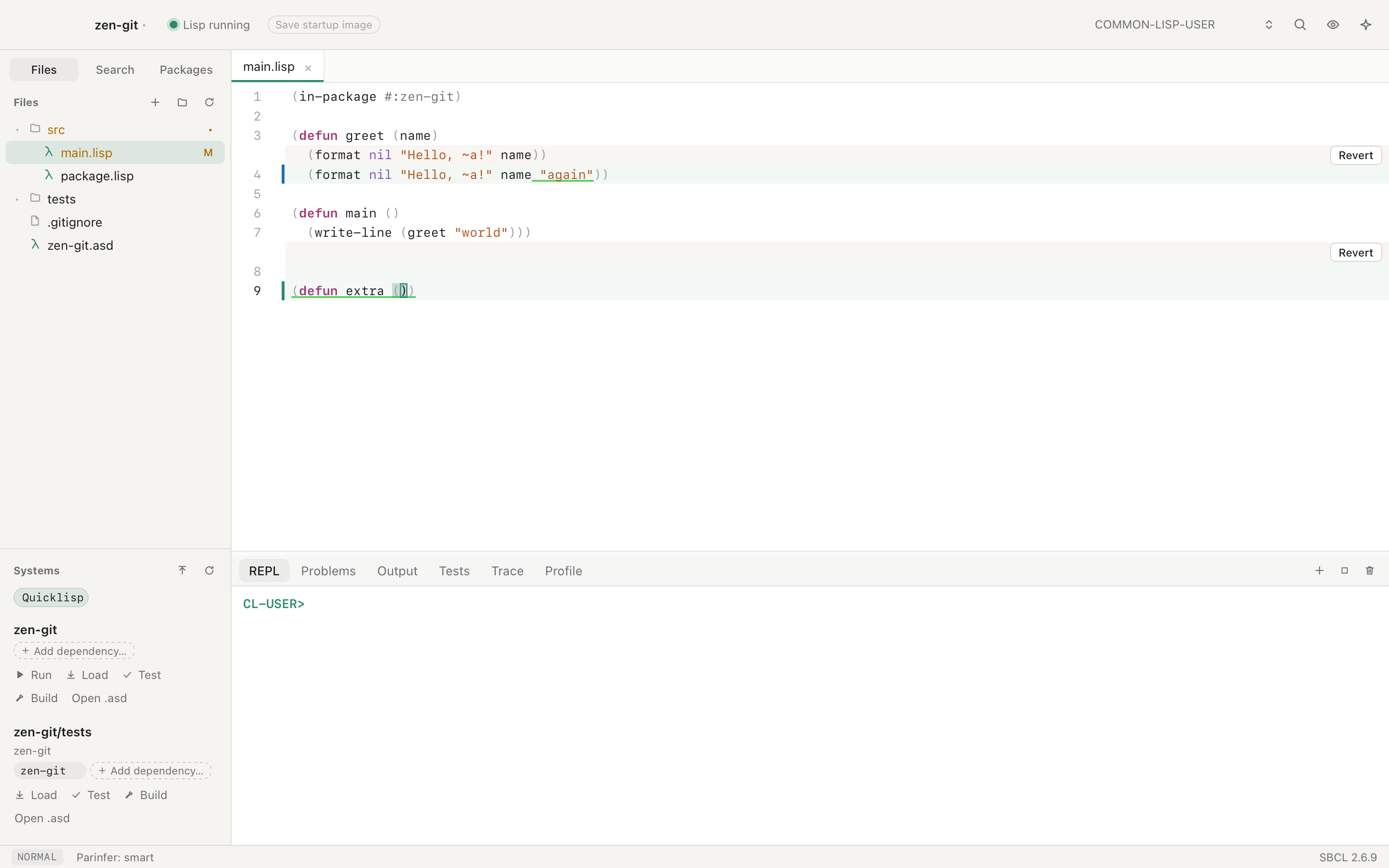
A git gutter with inline diffs, and a Revert button on each change.
Code colors that match everywhere. The editor, the REPL, the assistant's code blocks, the Learn panel and Markdown previews read code with the same reader, so strings, comments,
|symbols|and nested#| |#comments look the same in each. Parentheses get a color for each depth.Heads of forms colored by what the running Lisp knows. Your own macros look like
whenandwith-open-file, and a function named like syntax, such asdo-sum, looks like a call. Settings ▸ Colors turns this off. A theme can setsyn-macroandsyn-functionto give them their own colors.In the REPL, only your input and Lisp's results are read as Lisp. A program's output stays plain, so a quote it prints cannot change the colors that follow.
Word wrap (⌥Z) and Markdown preview (⇧⌘V).
A choice of editor and interface fonts.
Solarized, Nord and Gruvbox themes, picked separately for light and dark. Your own themes are JSON files in the themes folder, which Settings opens.